Arranging and aligning shapes
Arranging shapes using back, backward, front and forward
To arrange shapes:
- Click on one or more shapes
- Right click and select Arrange | Bring to front or Bring forward or Send backward or Send to back




Aligning shapes
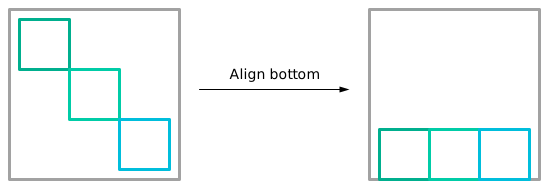
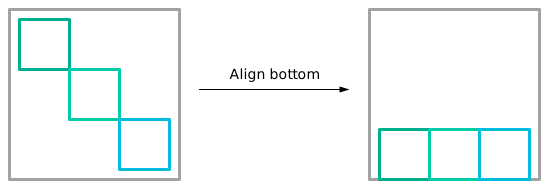
Aligning shapes require 2 or more shapes, as the shapes will be aligned relative to one another.
To align:
- Select multiple shapes, right click and select Align | Align Left or Middle or Right or Top or Center or Bottom
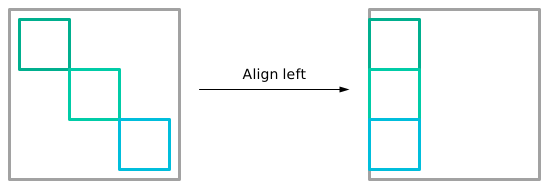
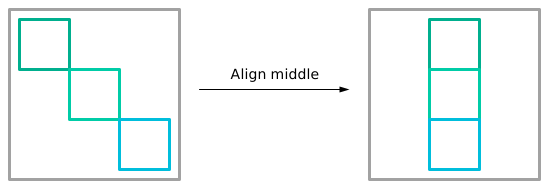
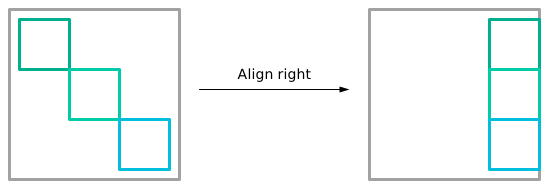

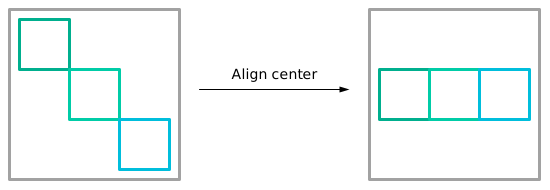
Distributing shapes
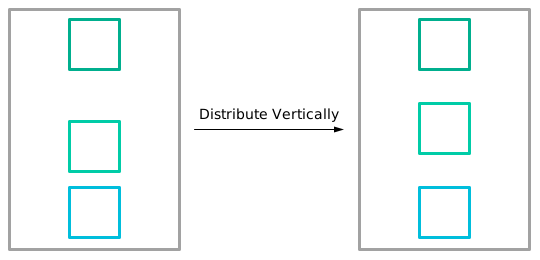
Simply select the shapes that you want to distribute, right-click and select Align | Distribute horizontally or Distribute vertically
Note: To use this feature, at least 3 shapes are required to be selected to distribute the shapes to one another evenly.
Aligning text boxes
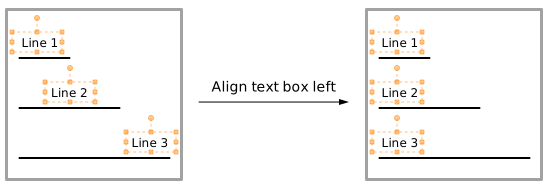
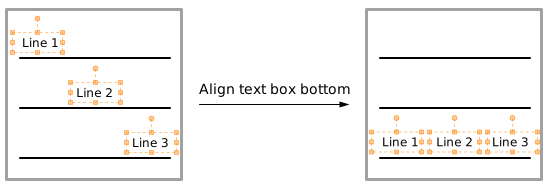
Aligning text boxes require 2 or more shapes containing text box, as the text boxes of those shapes will be aligned relative to one another.
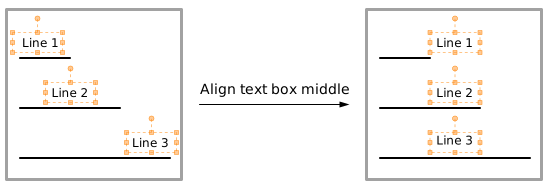
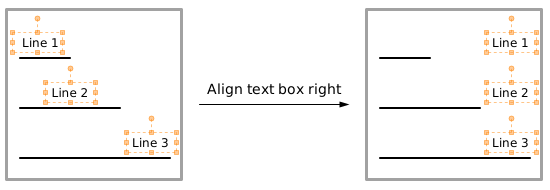
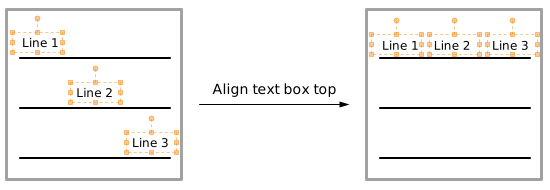
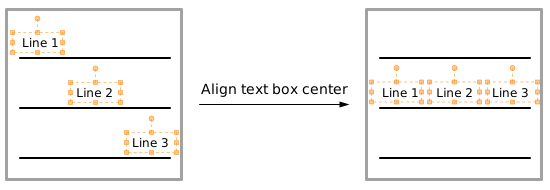
To align, select multiple shapes with text box, right-click and select Align. Then select from the following options:
- Align Text Box Left
- Align Text Box Middle
- Align Text Box Right
- Align Text Box Top
- Align Text Box Center
- Align Text Box Bottom
Creating guides
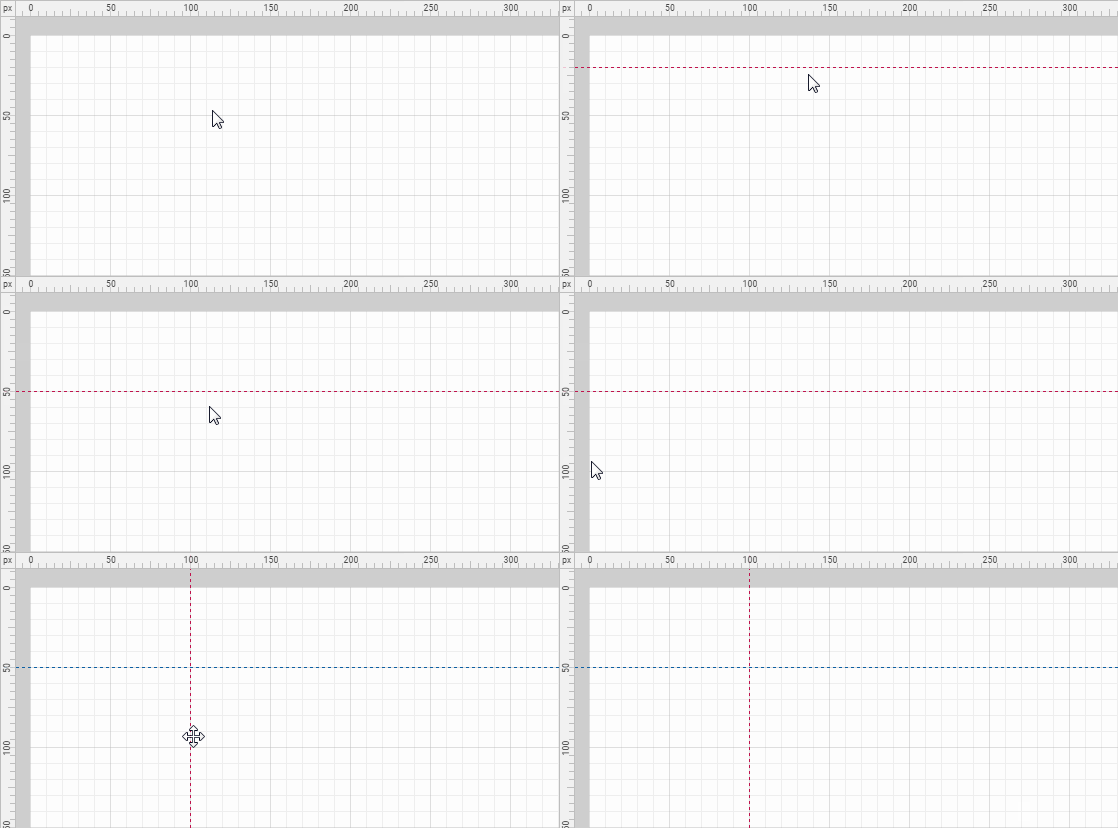
To create guides:
- Click on the ruler, then drag and drop a guide
Deleting guides
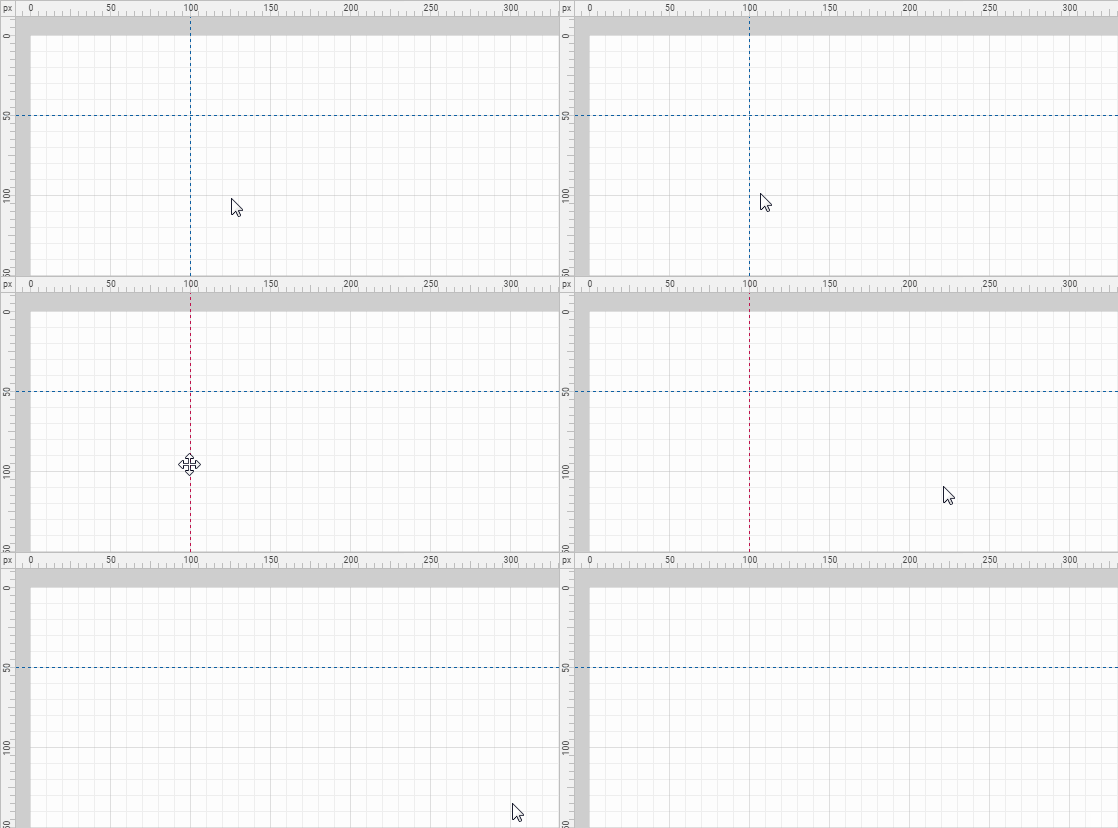
To delete a guide:
- Click on a guide to select it, then press the Delete key
Attaching shapes to guides
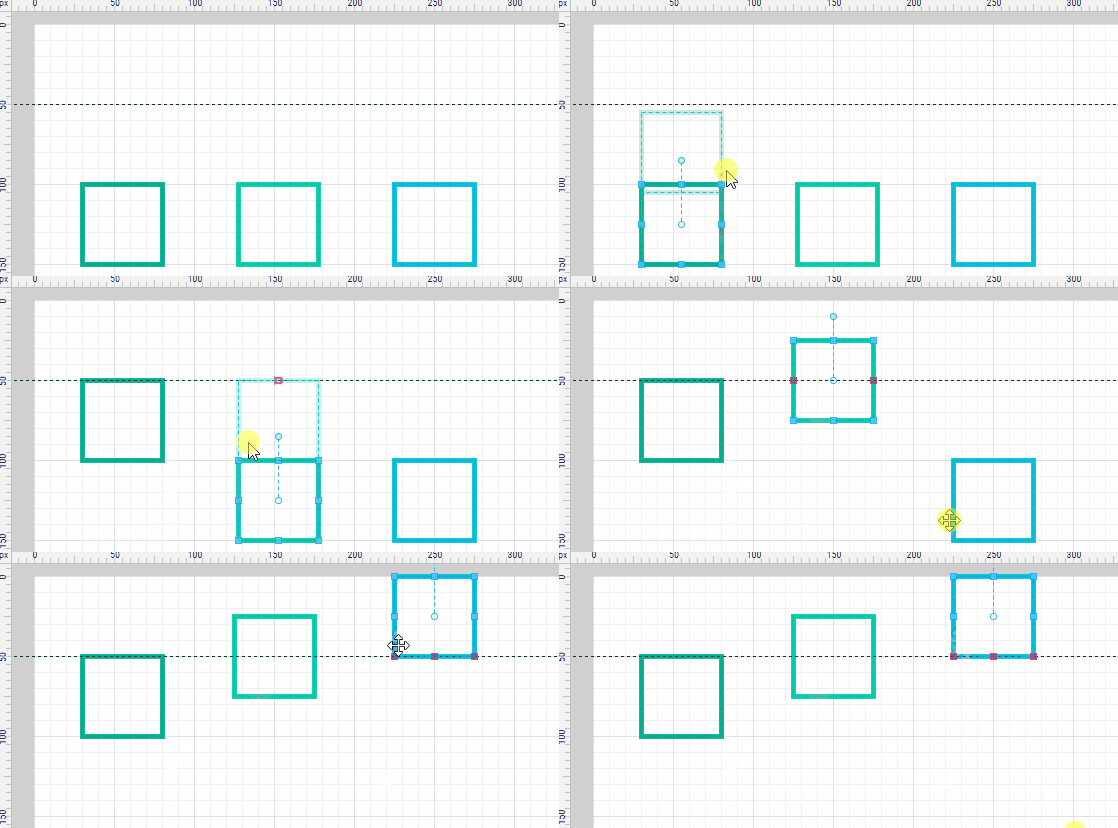
To attach shapes to guides:
- Drag and drop a shape close to a guide
Moving guides
To move a guide:
- Click and select a guide, then drag the guide to another location
- Or use the keyboard up, down, left or right keys to move the guide
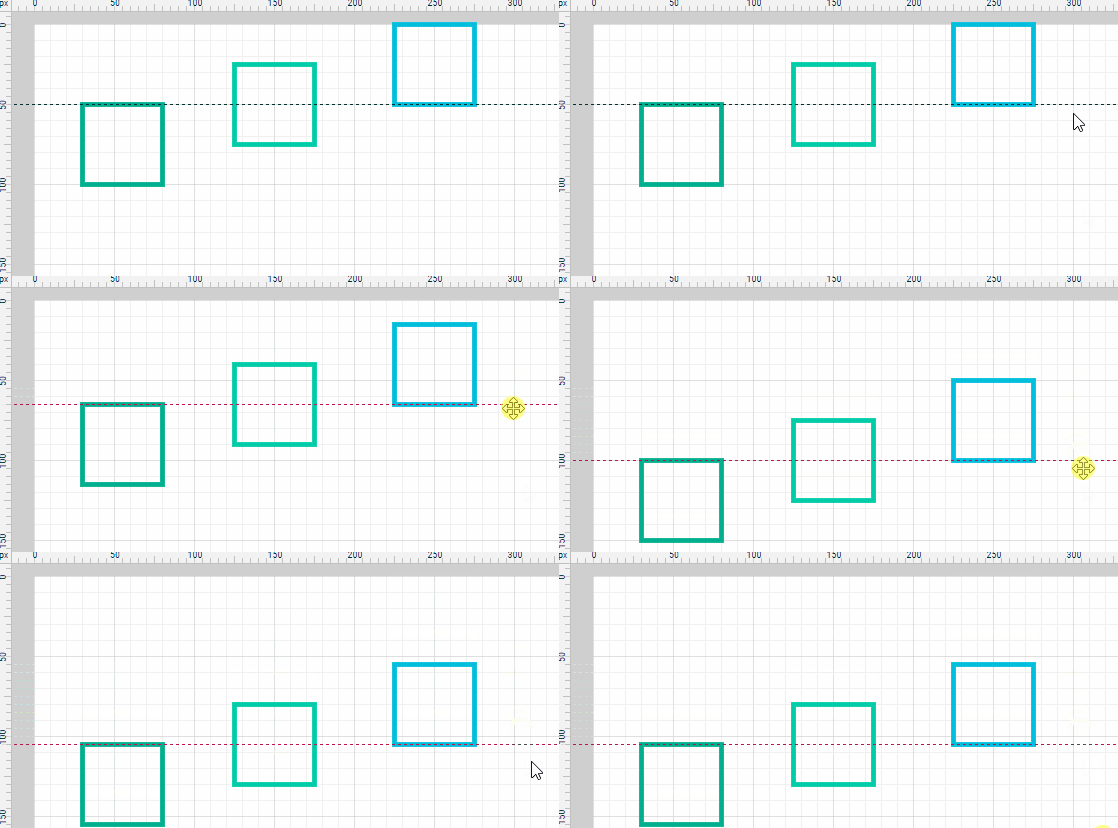
If there are shapes attached to guides, when the guide is moved, all attached shapes will also be moved.
Hiding and showing guides
To hide guides (but not deleting it):
- Click on menu View | Hide guides
To show guides again:
- Click on menu View | Show guides
Clearing (deleting) all guides
To clear guides:
- Click on menu View | Clear guides
